Hermes supports remote HTTP MCP and OAuth according to its official guide. Super-specific login and checkout have not been tested here.
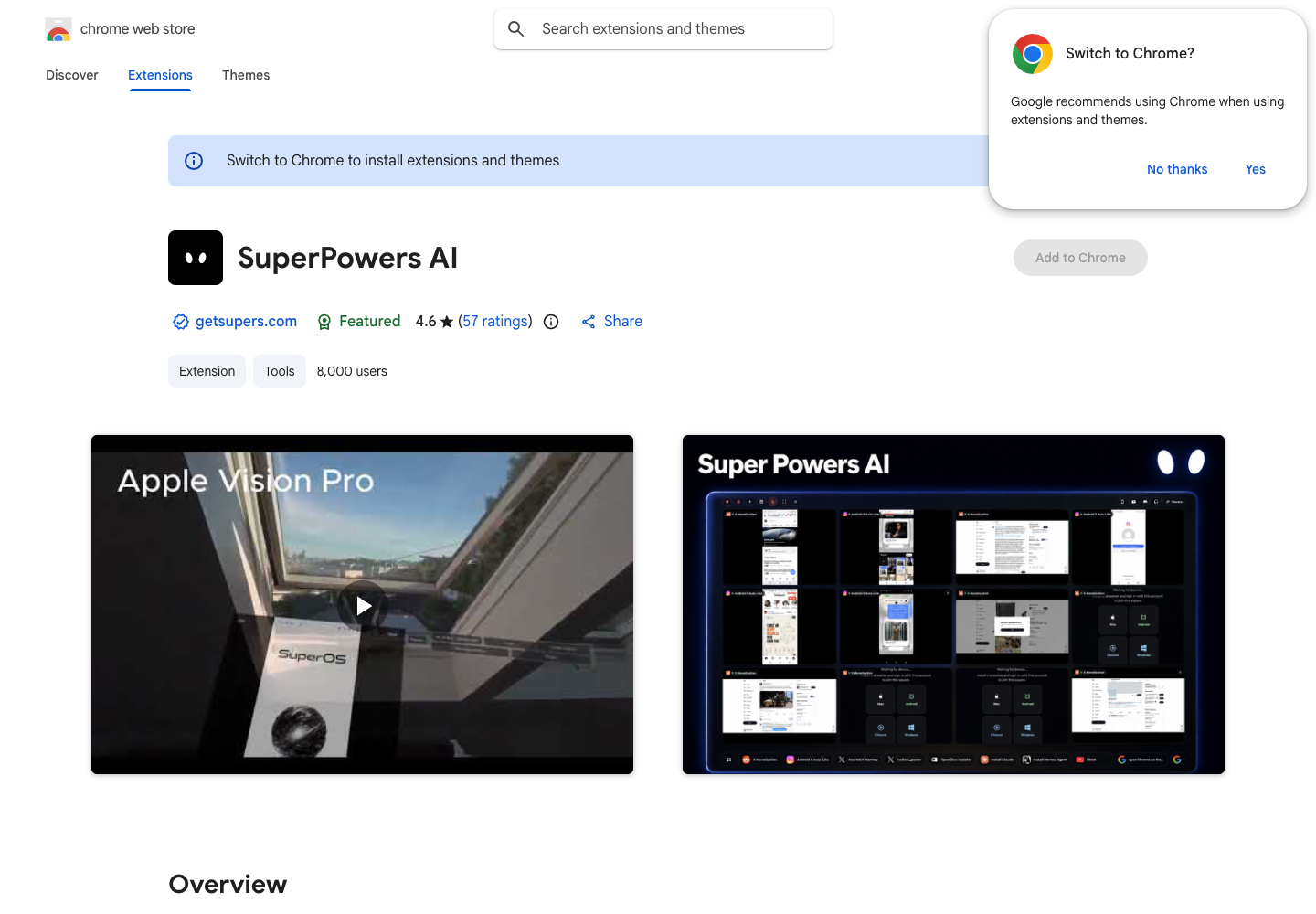
1. Install the SuperPowers Chrome extension
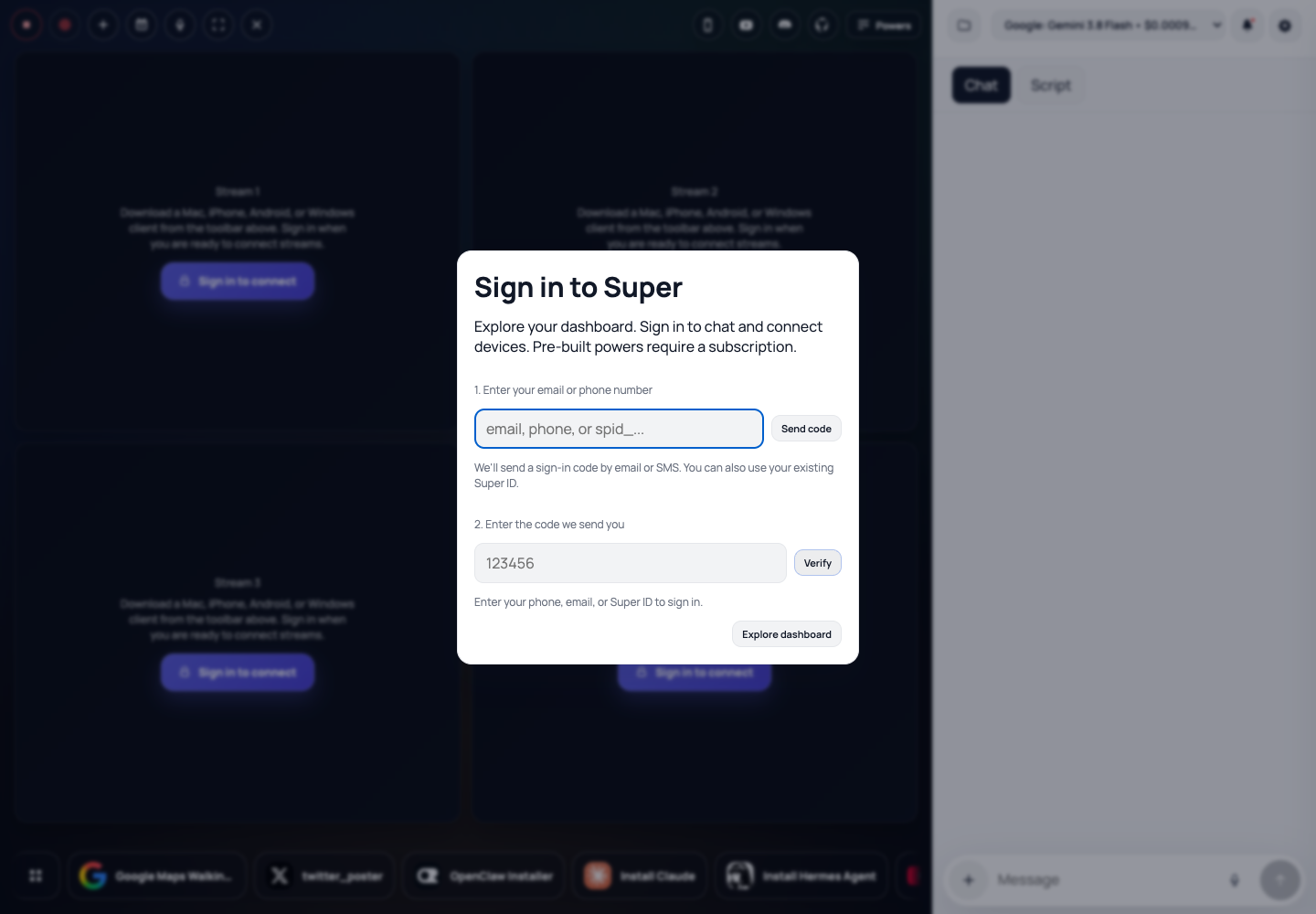
2. Sign in and connect your browser
3. Connect Hermes Agent to Super MCP
Server endpoint: https://app.getsupers.com/mcp
Follow the official client reference for version-specific controls.
mcp_servers:
  super:
    url: "https://app.getsupers.com/mcp"
    auth: oauth

# After saving ~/.hermes/config.yaml:
# hermes mcp login super
# hermes chat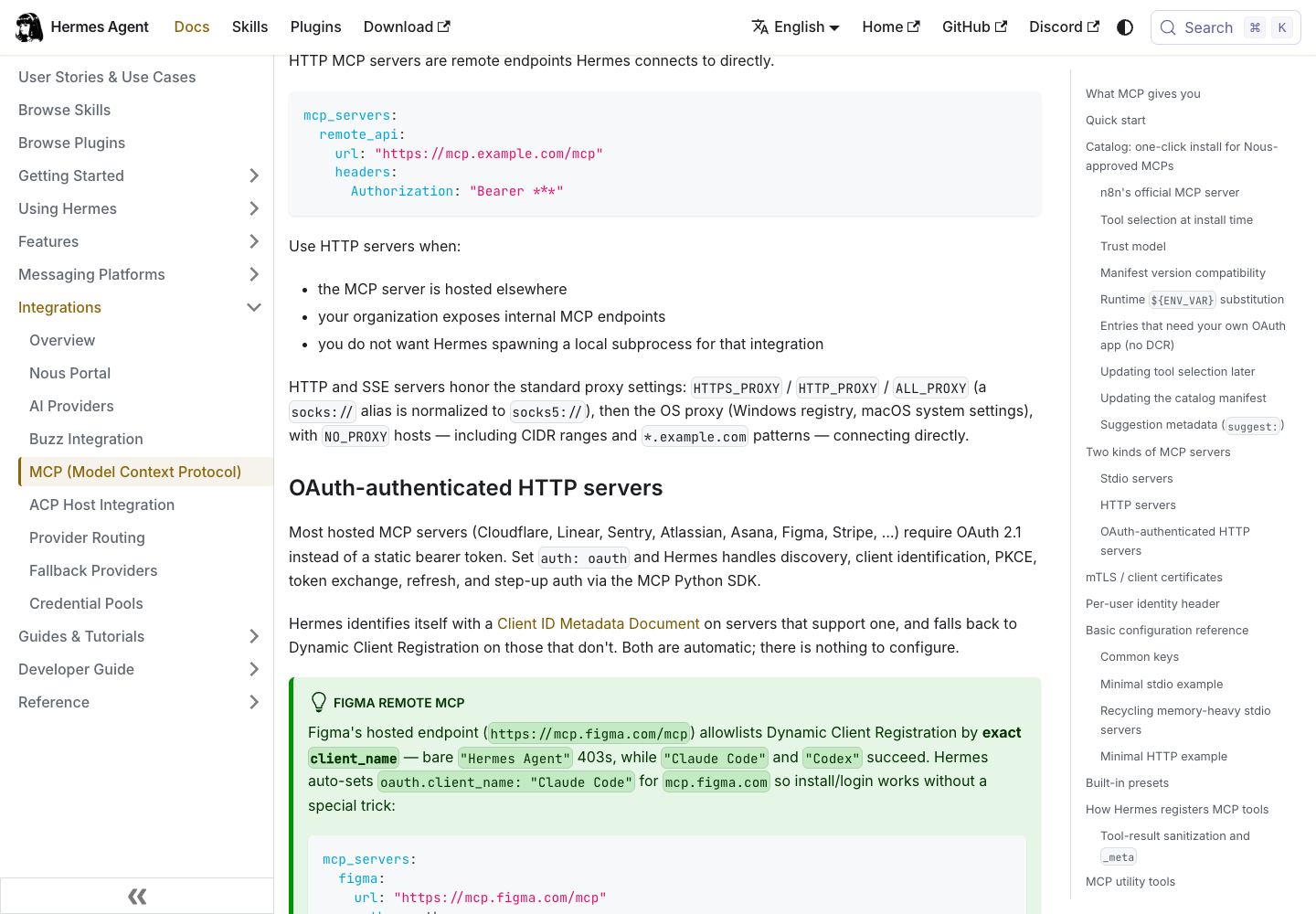
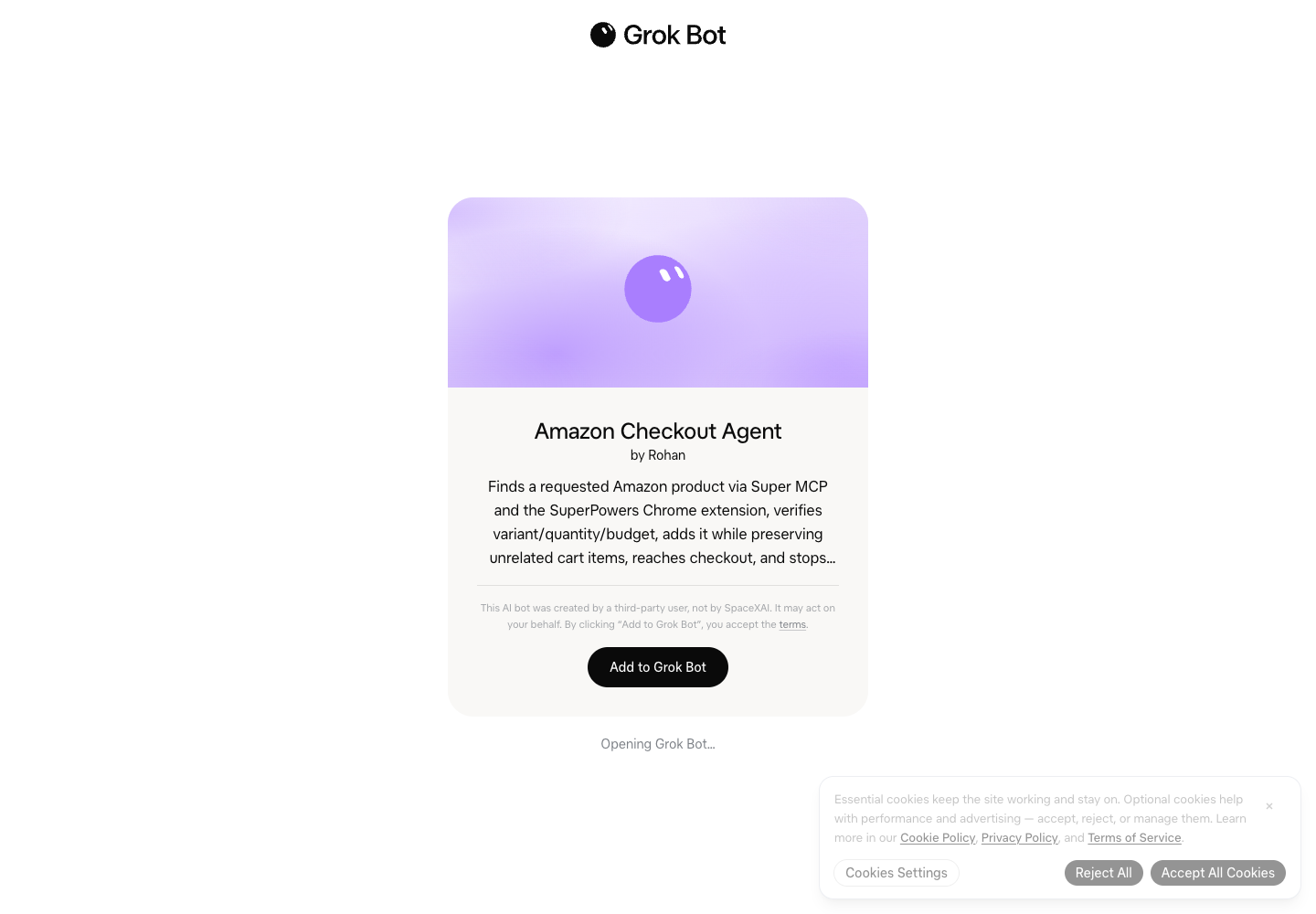
4. Open the Amazon template
5. Run the checkout-only prompt
Use Super MCP and my connected SuperPowers Chrome extension to build and run a reusable Amazon checkout agent. First discover the live browser sessions and current tool schemas. Use super_browser_agent_sessions, then super_build_browser_agent with the returned session_id, my complete objective and a unique request_id. Track the returned run_id with super_browser_agent_status.

For this example, find an ordinary writing pencil or suitable small pencil pack on amazon.com, quantity 1, with a maximum final total of $10 USD. Verify the exact product, variant, quantity and visible price before changing the cart. Preserve unrelated cart items and tabs; inspect existing matching items before adding another. Use the selected model to reason over the live page and choose observed controls. Reach the checkout or order-review screen and STOP before placing an order, confirming payment or enrolling in a subscription.

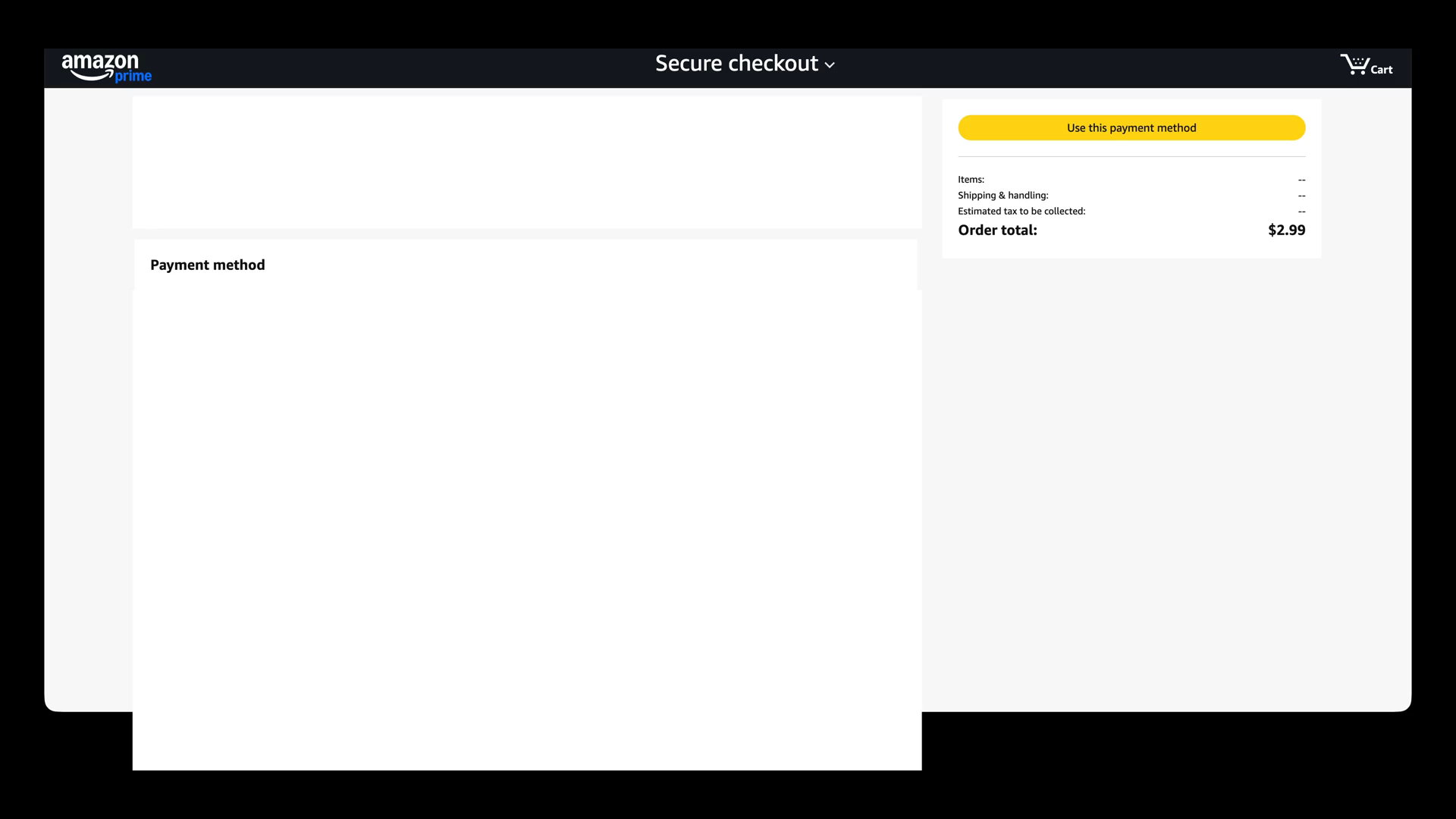
Return the actual stage, product, quantity, item price and total, with a redacted screenshot. A cart page, queued build or stopped receipt alone does not establish checkout success. If anything fails, inspect current state before retrying; teach the next prompt what failed and what should happen instead. Save a reusable prompt with runtime product, variant, marketplace, quantity and budget inputs. Exclude credentials, addresses, payment details and session identifiers from shared artifacts.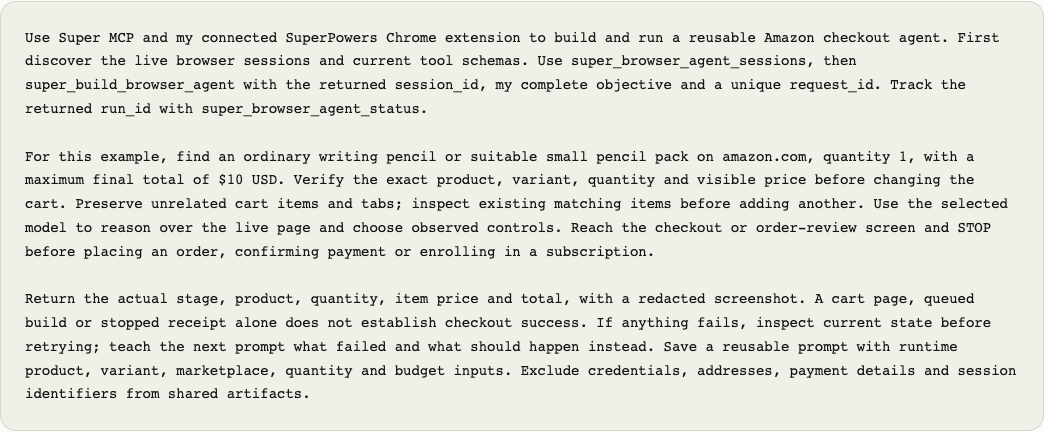
6. Verify the checkout screen
If setup fails
“redirect_uri is not registered for this client”
The OAuth client and callback URL do not match. Start a fresh sign-in from this client, and use the exact callback it displays when a registration is needed. Preserve OAuth state and PKCE validation. An old pending sign-in card can retain stale client metadata; refresh the affected connection through the client’s supported controls. Do not reuse someone else’s OAuth client, token or callback.
No Chrome session or builder tool appears
Check that the extension and agent connector use the same Super account, Chrome is online, and the server is enabled for this conversation. Ask the agent to inspect the live session list. Respect the actual tool’s account, credit and capability errors.
The build is stopped, queued or fails
Inspect current page state and the run result before starting another build. A stopped receipt is not completion. Correct the prompt with the observed failure, expected behavior and success evidence; preserve unrelated cart items and avoid duplicate additions.
How to auto-build agents for any task
The same connection can build an agent for a different website or workflow. Describe the goal, inputs, limits and visible finish state, then let the selected model adapt to the page it sees.
- Choose a goal and runtime inputs: site, query, quantity, dates or account context.
- Define the observable result and the actions that require you to stop or review.
- Discover Super’s current browser sessions and tools, then request a new build with a unique request ID.
- Watch the run and verify the actual page or artifact, not only the accepted request.
- Teach failures back into the reusable instructions and inspect previous actions before retries.
- Save and share a reusable prompt without tokens, private data or session IDs.
Build a reusable browser agent with Super MCP and my connected SuperPowers Chrome extension for this goal: [GOAL]. Runtime inputs: [INPUTS]. Success means: [OBSERVABLE RESULT]. Stop before: [BOUNDARIES]. Preserve: [EXISTING WORK].

Discover the current tools and browser sessions. Build through the dedicated browser agent builder using the selected model, then run and inspect the returned result. Reason from the live page rather than fixed selectors or a prerecorded click sequence. If a step fails, inspect whether it already changed anything, describe the failure and expected behavior in the next prompt, and retry without duplicates. Save the resulting reusable agent instructions and a redacted record of the verified outcome.
Open the general Super MCP template or choose another client guide.